








- Lo que aprenderás
- Whether Google actually has a built-in room booking system
- How to set up and book meeting rooms in Google Calendar
- The biggest limitations of using Google Calendar for room booking
- How third-party tools improve Google Workspace room booking workflows
- How the integration with Archie adds booking rules, usage tracking, and real-time sync
If your team already uses Google Workspace, it makes sense to start with Google Calendar for room booking.
After all, people already use it every day to schedule meetings, invite teammates, and check availability. So, being able to book a meeting room from the same place can feel like the easiest option.
And in many cases, it is.
Google Calendar can help you reserve meeting rooms, avoid basic scheduling conflicts, and keep everyone on the same page. But it also has some limits, especially if you need more control over booking rules, room usage, no-shows, or shared workspace management.
In this guide, I’ll show you how Google Calendar room booking works, where it falls short, and when it makes sense to connect it with a dedicated room booking tool like Archie.
¿Tiene Google un sistema de reserva de salas ?
Not exactly. Google does not offer a dedicated room booking system in the same way that workplace management platforms do. But Google Calendar does let you book shared resources, such as meeting rooms, conference rooms, and other office spaces.
So, if your company uses Google Workspace, your team can reserve rooms directly from Google Calendar when creating a meeting.
Cómo reservar una sala de reuniones desde Google Calendar
There are a few ways to book a meeting room in Google Calendar. The available options depend on how your company has set up Google Workspace:
Option 1: Creating a shared calendar
If you manage a meeting room, you can create a shared calendar for that room. It’s one of the easiest ways to go about Google Calendar room booking.
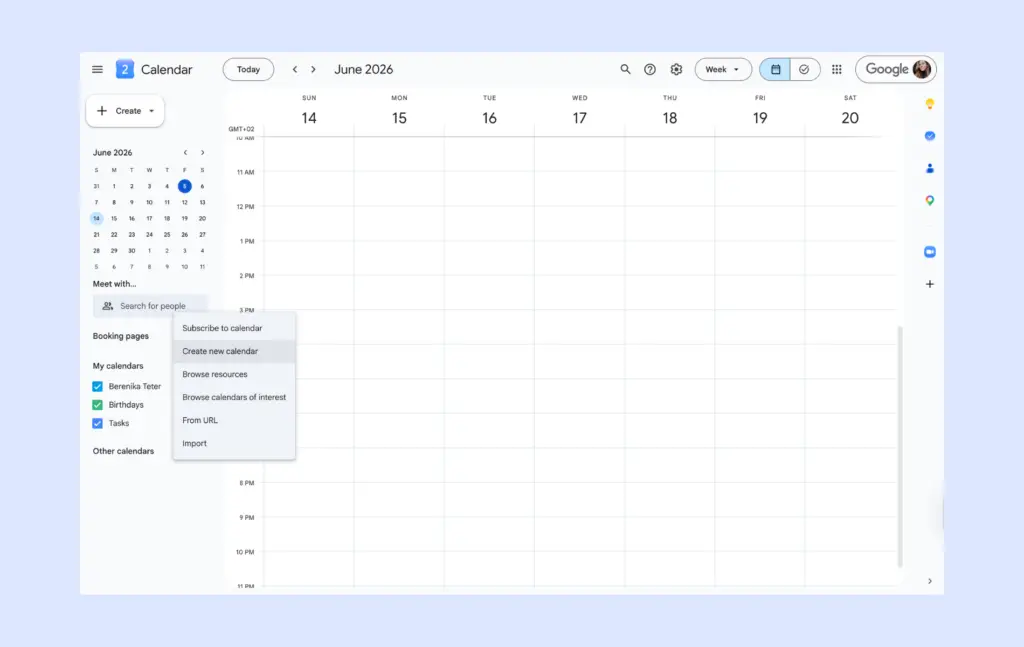
To do this, open Google Calendar on a computer. Then click Add other calendars and choose Create new calendar. From there, you can name the calendar after the room, add details, and create it.
Once the calendar is ready, go back to your main calendar view and find it under My calendars. Then open Settings and sharing. Here, you can choose how bookings should work. For example, you can decide whether reservations should be accepted automatically, reviewed manually, or added only after users respond.
You can also choose who can see and use the room calendar, whether that is your full organization or only specific people. After that, employees can add the shared calendar when they create a meeting.
Option 2: Add a room when creating a meeting
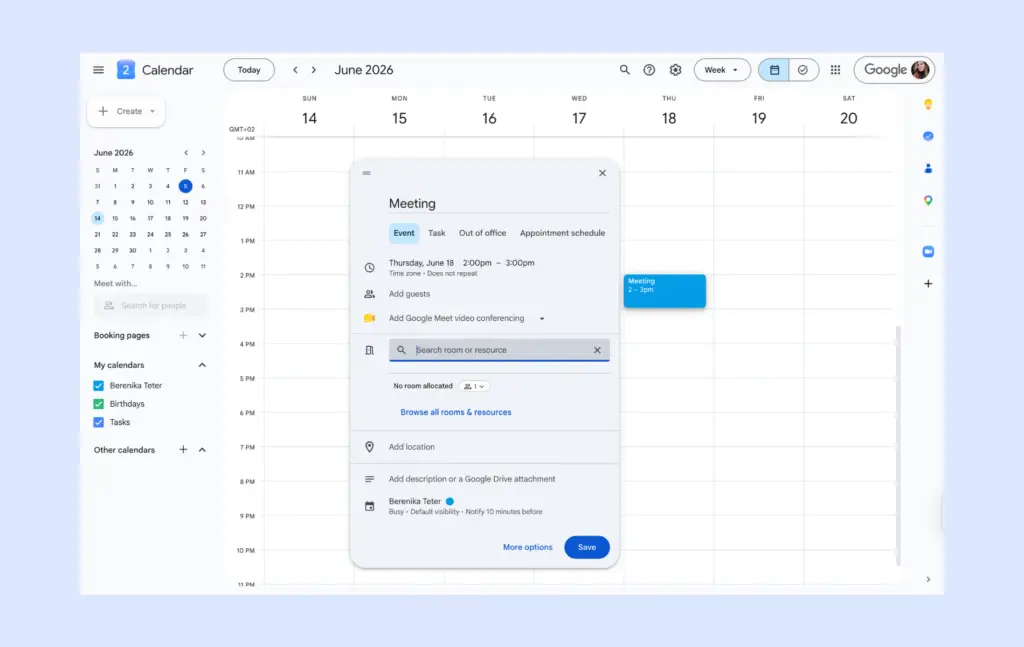
This is the most common way to book a room, but it only works if your admins have already created the necessary resources (locations, rooms, office equipment, etc.) in Google Calendar. Here’s how to set up Calendar so users can book shared resources →
When you create a new event in Google Calendar, add your guests first. Then click Add rooms and choose one of the available rooms.
Once you save the event, Google Calendar will try to reserve the room for you. If the room is free and you have permission to book it, the room will be added to the meeting.
Option 3: Book rooms through connected workplace software
Some companies connect Google Calendar with workplace tools like Archie.
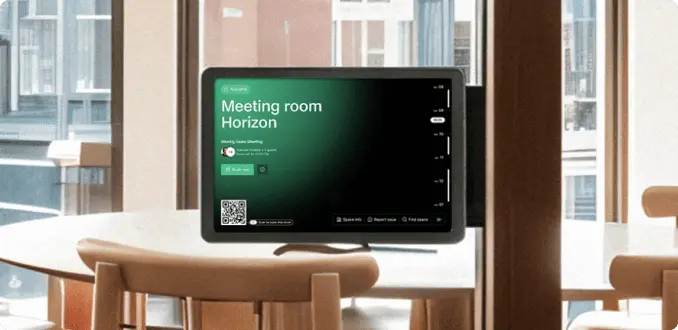
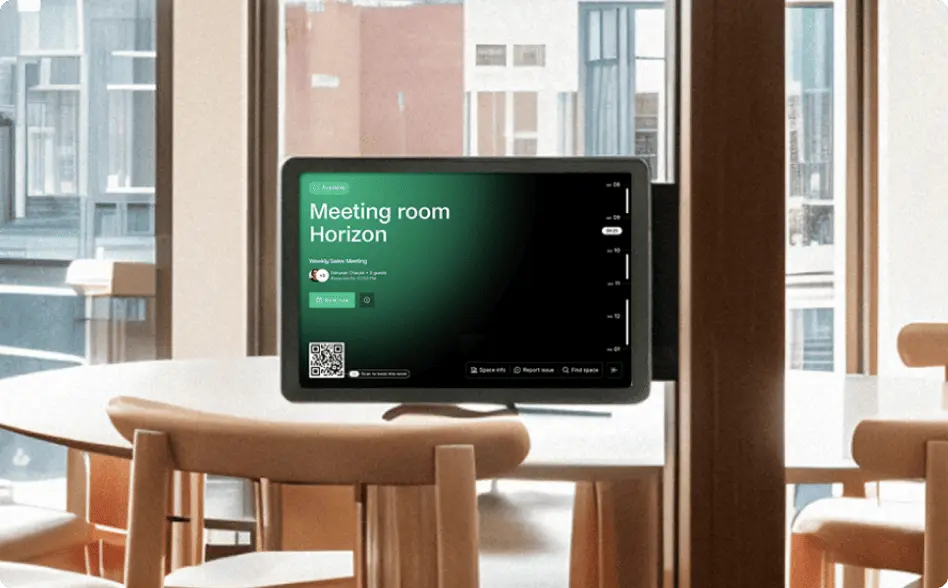
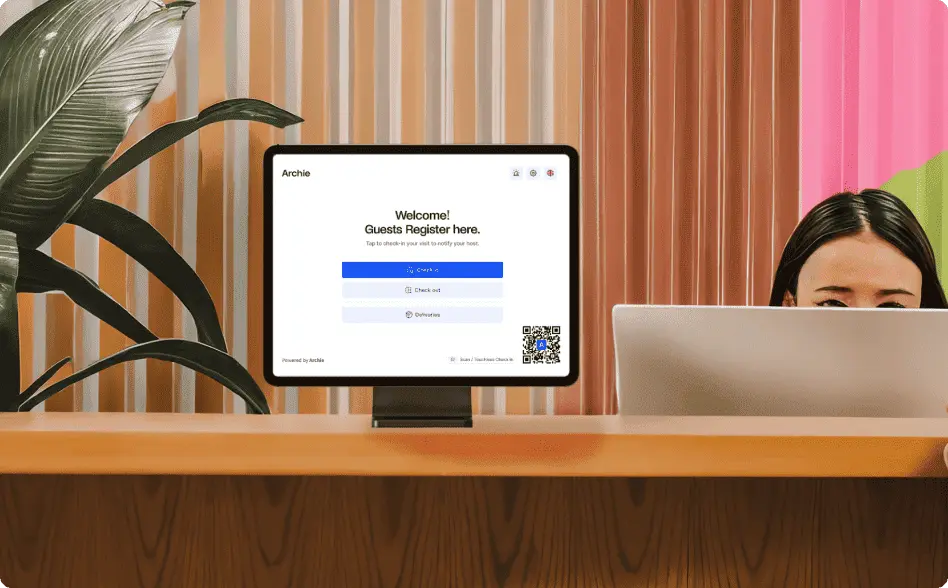
In this setup, employees can still book rooms from Google Calendar, but they may also be able to book from other places, such as web & mobile apps, kiosks, or meeting room displays.
The main benefit is that everything stays synced. So, if someone books a room in Google Calendar, it can also appear in Archie. If someone books a room in Archie, it can block that time in Google Calendar too.
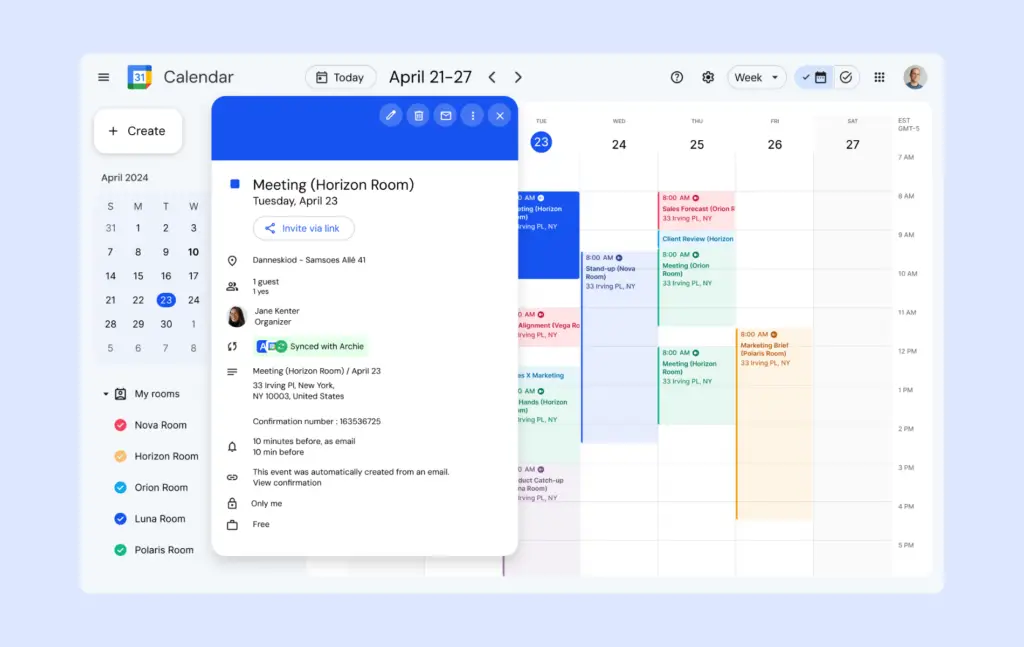
reserva dereserva de sala en Google Calendar
Google Calendar can be a good starting point for booking meeting rooms, especially if your team already uses Google Workspace.
But it is not built as a full room booking system, so there are a few important limits to keep in mind.
One of the biggest challenges is that many settings are controlled by an IT admin. If you need to change booking rules, update permissions, or adjust availability, you may need to ask someone else to do it for you. That can slow things down in a busy office.
Google Calendar also gives you limited control over how rooms are used. For example, you cannot easily:
- Limit how far in advance people can book
- Set cancellation deadlines
- Stop one person from blocking a room for too long
- Add detailed booking rules by team, role, or room type
- Track no-shows automatically
- See detailed room usage and occupancy data
This can lead to a few common problems. Someone might book a room for the whole day even if they only need it for one meeting. A room might stay reserved even when nobody shows up. Or your team might have no clear way to see which rooms are used often and which ones sit empty.
Google Calendar also does not support payments for room rentals. So, if you run a coworking space or let external guests book meeting rooms, you would need to handle payments manually.
That does not mean Google Calendar is a bad option. It just means it works best for simple internal room booking.
How third-party tools improve Google Calendar room booking
If your company needs more control, you can connect Google Workspace with a dedicated room booking tool like Archie. This lets your team keep using Google Calendar while adding more advanced booking features in the background.
For example, when Archie is connected to Google Calendar, bookings can sync between both platforms. If someone books a room in Archie, it appears in Google Calendar. If someone books a room in Google Calendar, that time can also be blocked in Archie. This helps prevent double bookings and keeps availability up to date.
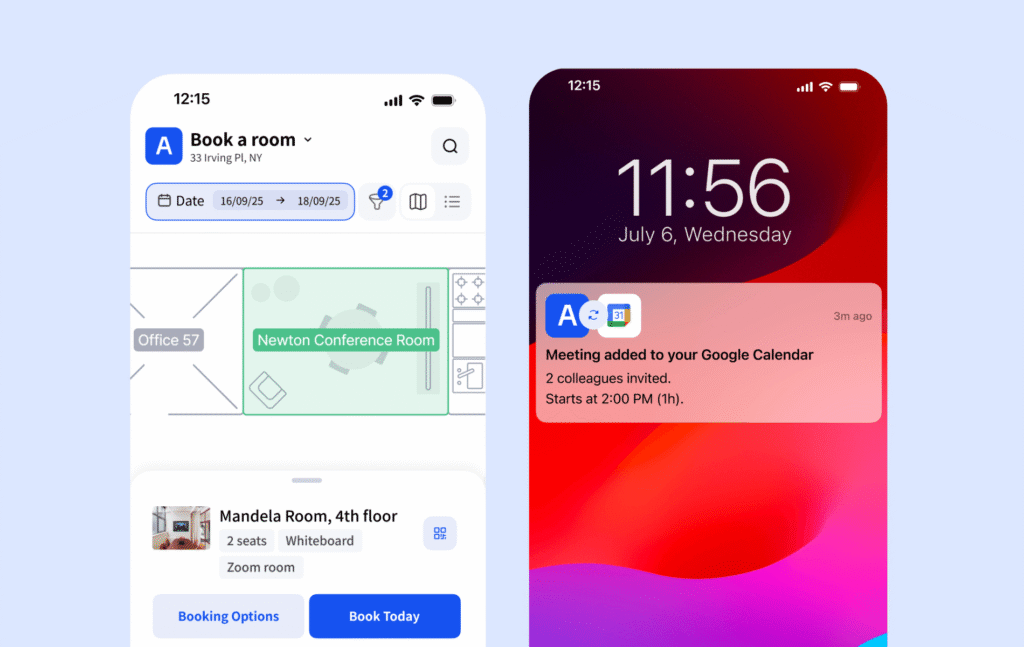
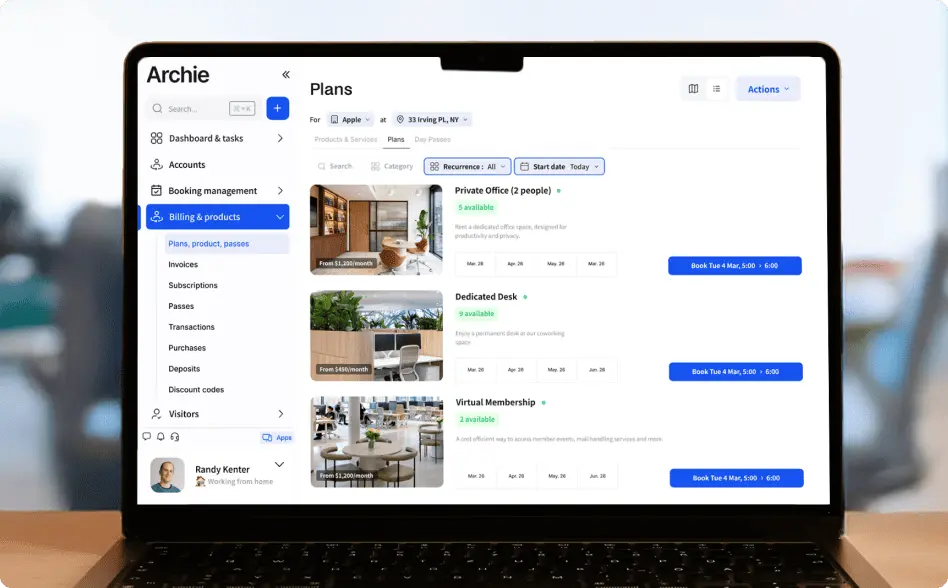
A tool like Archie can also add features that Google Calendar does not offer on its own, such as:
- Booking rules and time limits
- Room check-ins
- No-show management
- Real-time availability
- Usage tracking
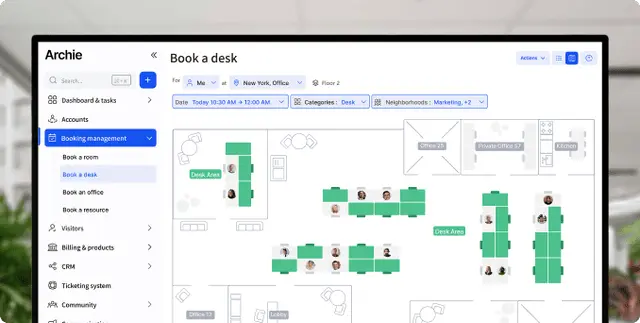
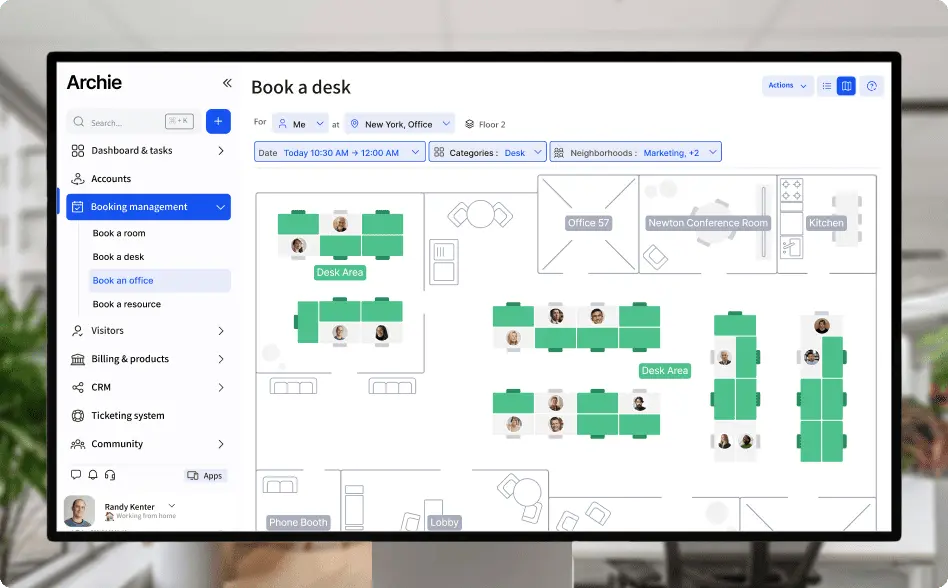
- Interactive floor plans
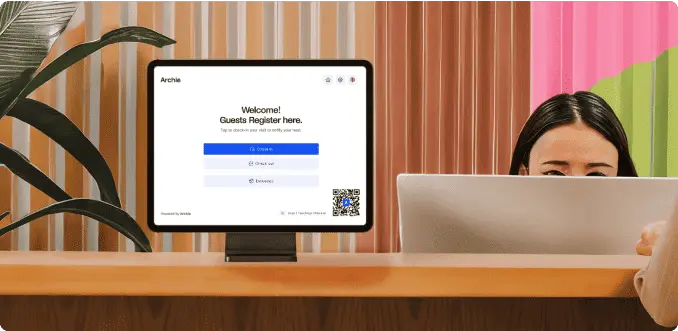
- Visitor and guest support
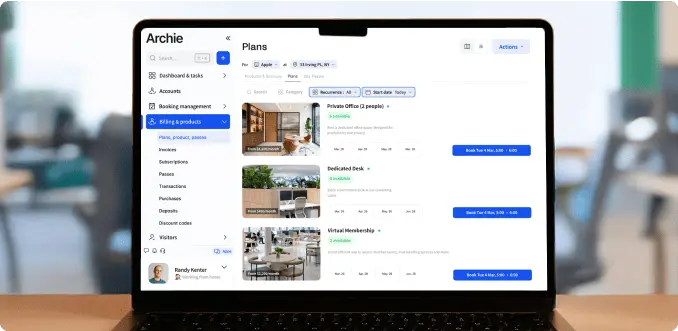
- Payments for external bookings
- Better control for admins
This is especially useful for offices and coworking spaces that manage more than just a few meeting rooms.
How Archie works with Google Calendar
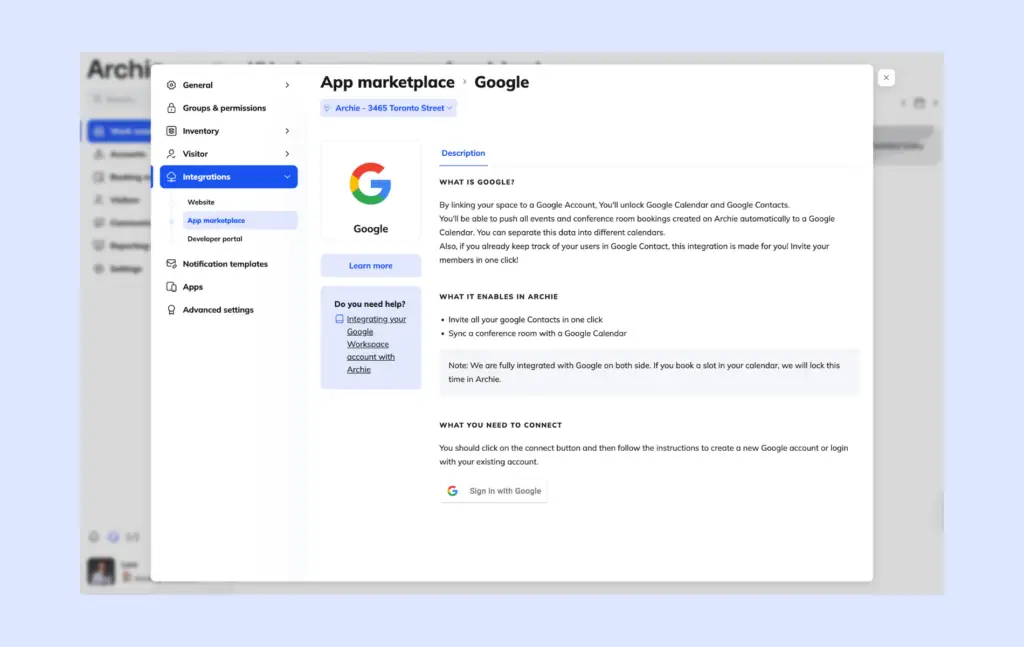
Archie integrates with Google Workspace to make room booking easier while keeping calendars in sync.
Once the integration is connected, bookings made in Archie can appear in Google Calendar. At the same time, meetings created in Google Calendar can block the same room in Archie, so other people cannot book it by mistake.
With the Archie and Google Workspace integration, you can:
- Sync bookings with Google Calendar
- Keep room availability updated in real time
- Prevent double bookings
- Apply booking rules and limits
- Add guests, notes, and video links
- Manage bookings across Archie and Google Calendar
This makes the whole booking process smoother without forcing your team to change the tools they already use every day.
💡 Here’s how to integrate Archie with Google Workspace step by step →
¿Deberías usar Google Calendar para reservar salas ?
Google Calendar can work well if you only need a simple way to book meeting rooms. It is familiar, easy to access, and already part of many teams’ daily workflow.
But if your office needs more structure, Google Calendar may not be enough on its own. You may quickly run into limits around booking rules, room usage, no-shows, occupancy reporting, and admin control.
That is where a tool like Archie can help.
With Archie, you can keep the convenience of Google Calendar while adding the features you need to manage meeting rooms properly. Bookings stay in sync, availability updates in real time, and your team gets a smoother way to reserve rooms without creating extra work for admins.
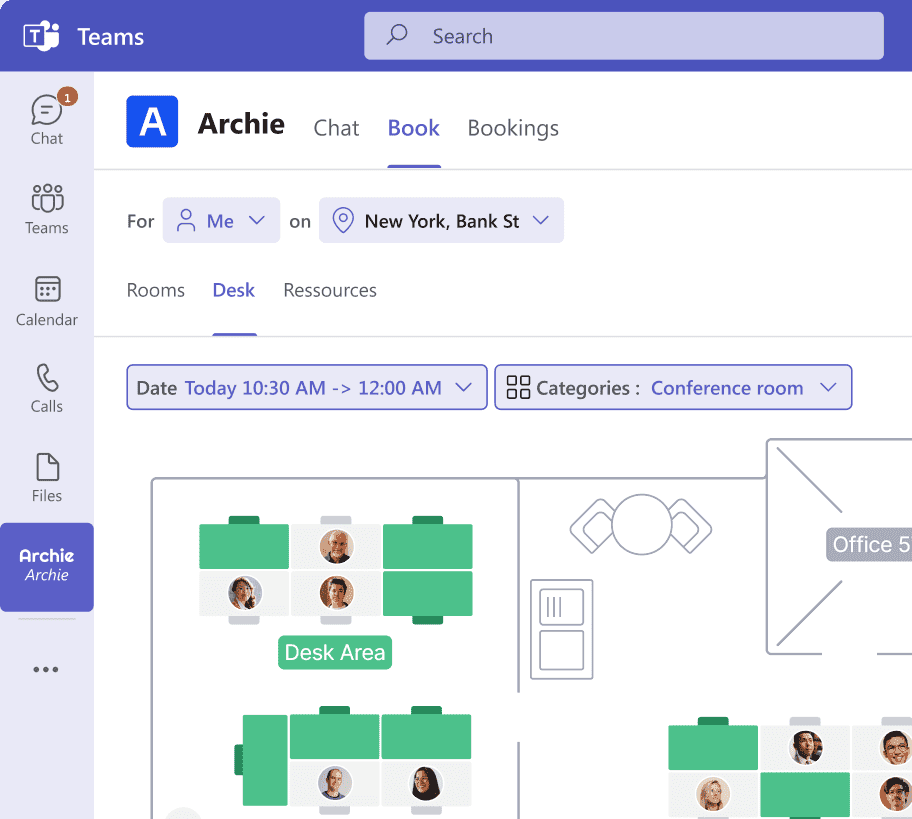
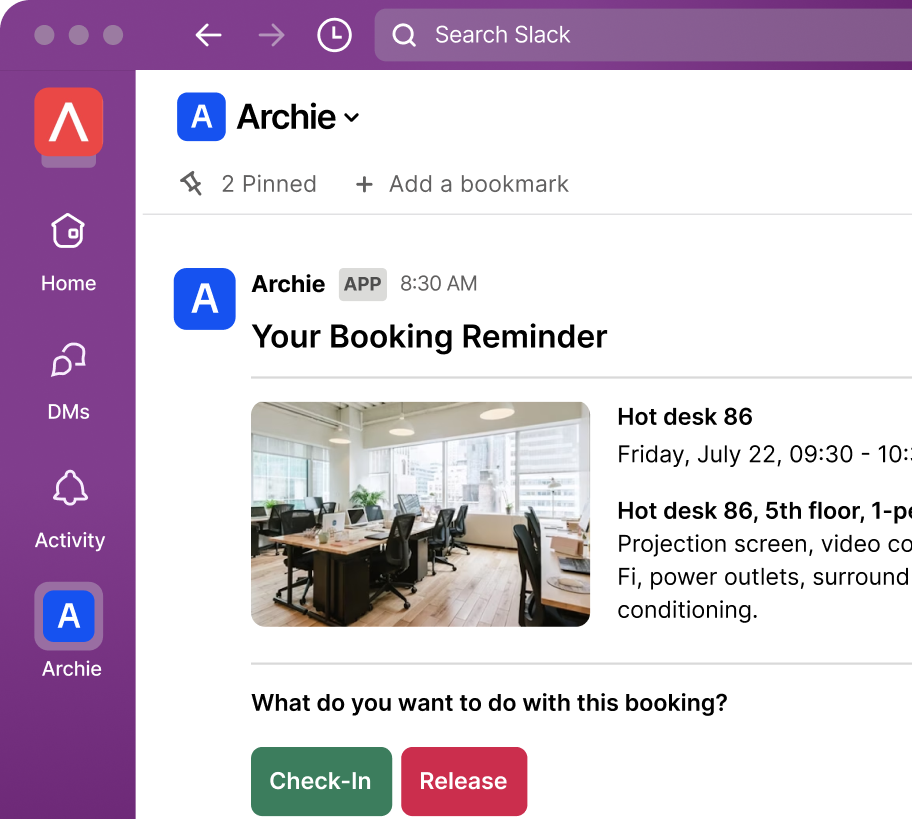
And if you prefer using Microsoft Teams for desk & room booking or managing reservations via Slack, Archie works there too.